
Deploy
Deploy is a unified deployment and operations platform designed to help developers move from code to production without managing custom CI/CD pipelines or DevOps infrastructure. It provides a simple, guided deployment experience while offering the flexibility required to run and scale real-world applications.
CreateOS Deploy supports multiple deployment sources, allowing you to deploy applications directly from:
- GitHub repositories
- Docker images
- Uploaded project files
- AI-generated projects from the CreateOS ecosystem
By abstracting infrastructure complexity, CreateOS Deploy allows builders to focus on shipping features, iterating quickly, and scaling confidently.
Quickstart: Deploy Your First Application
CreateOS Deploy is designed to get your application live in minutes. This section walks you through the initial setup and project creation process.
Step 1: Sign In
To get started with CreateOS Deploy:
- Visit createos.nodeops.network
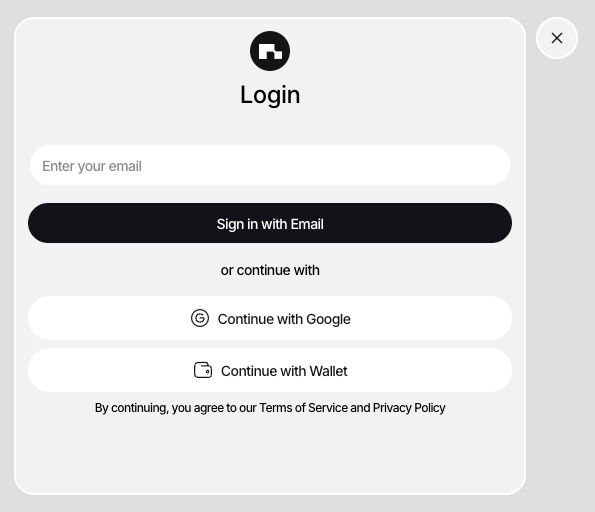
- Sign in using one of the supported methods:
- GitHub
- Wallet (not recommended)
Once authenticated, you will be redirected to the CreateOS dashboard.
Step 2: Create a New Project
Creating a project initializes the deployment workflow and defines how your application will be built and run.
- Click + New Project from the dashboard
- Choose a deployment method:
- GitHub Repository
- Docker Image
- Template
- Manual Upload
Each method is optimized for different use cases and levels of control.
Project Deployment
CreateOS Deploy supports multiple deployment strategies, giving you flexibility depending on how your application is structured and where it lives.
1. Deploying via GitHub Repository
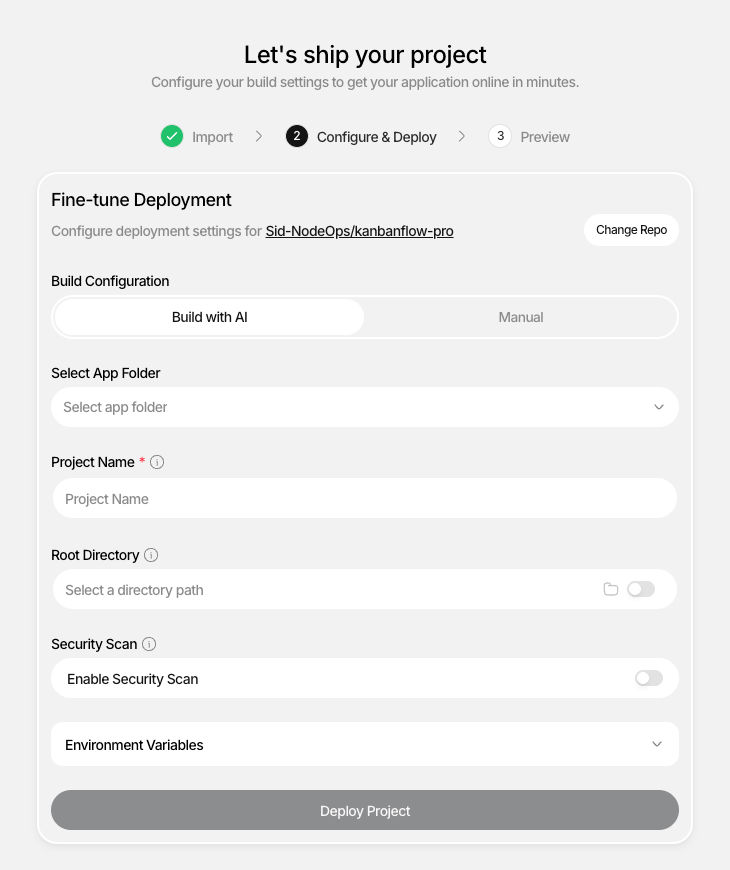
Deploying from GitHub is the most common workflow and supports both AI-assisted and manual configuration modes.
Option 1: Build with AI (Recommended)
This option is ideal for the fastest path to deployment.
Steps:
- Select GitHub Repository
- Click Browse Repositories
- Choose your repository
- Enter a project name (optional)
CreateOS AI automatically:
- Detects the framework
- Configures build and run commands
- Assigns the correct server port
- Sets up the deployment pipeline
This option requires minimal input and is best for standard projects.
Option 2: Manual Configuration
Choose this option if you want full control over the deployment configuration.
Steps:
- Select GitHub Repository
- Browse and select your repository
- Choose the branch to deploy (
main,master,develop, etc.) - Select the framework (Node.js, Python, React, Next.js, etc.)
- Configure the server port (e.g.,
3000,8000,8080) - Set a project name (optional)
- This becomes your subdomain:
myproject.createos.nodeops.network
- This becomes your subdomain:
- Add build commands (optional)
- Example:
npm install,pip install -r requirements.txt
- Example:
- Add run commands (optional)
- Example:
npm start,python app.py
- Example:
- Configure environment variables (optional)
- Click Deploy
CreateOS will build and deploy your application based on the provided configuration.
2. Manual Project Uploads
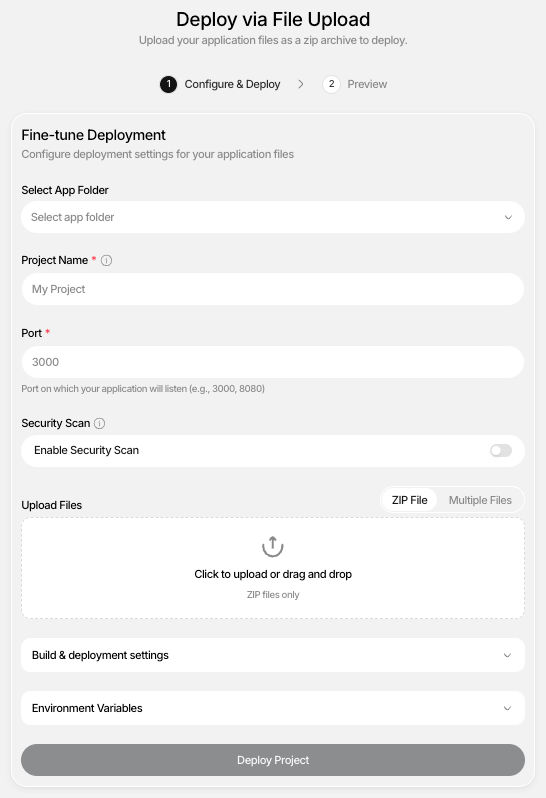
Manual uploads allow you to deploy applications without connecting a repository.
This deployment method is well-suited for:
- Local projects
- AI-generated code
- Prototypes and demos
- One-off applications
Steps:
- Select Manual Upload
- Upload your project files
- Configure build and run commands
- Set environment variables if needed
- Click Deploy
CreateOS will build and deploy the uploaded project immediately.
3. Deploying via Docker Image
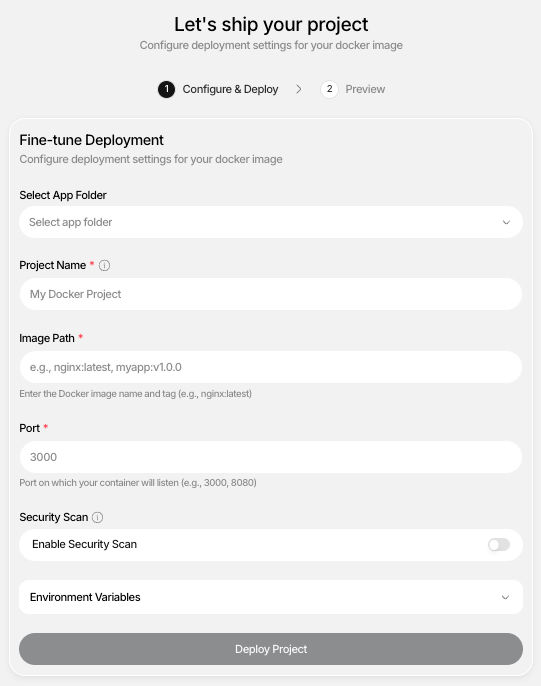
Docker-based deployment is ideal for containerized applications or advanced use cases.
Steps:
- Select Docker Image
- Enter the Docker image URL
- Specify the exposed port
- Configure environment variables (optional)
- Click Deploy
CreateOS pulls the image and deploys it without requiring additional setup.
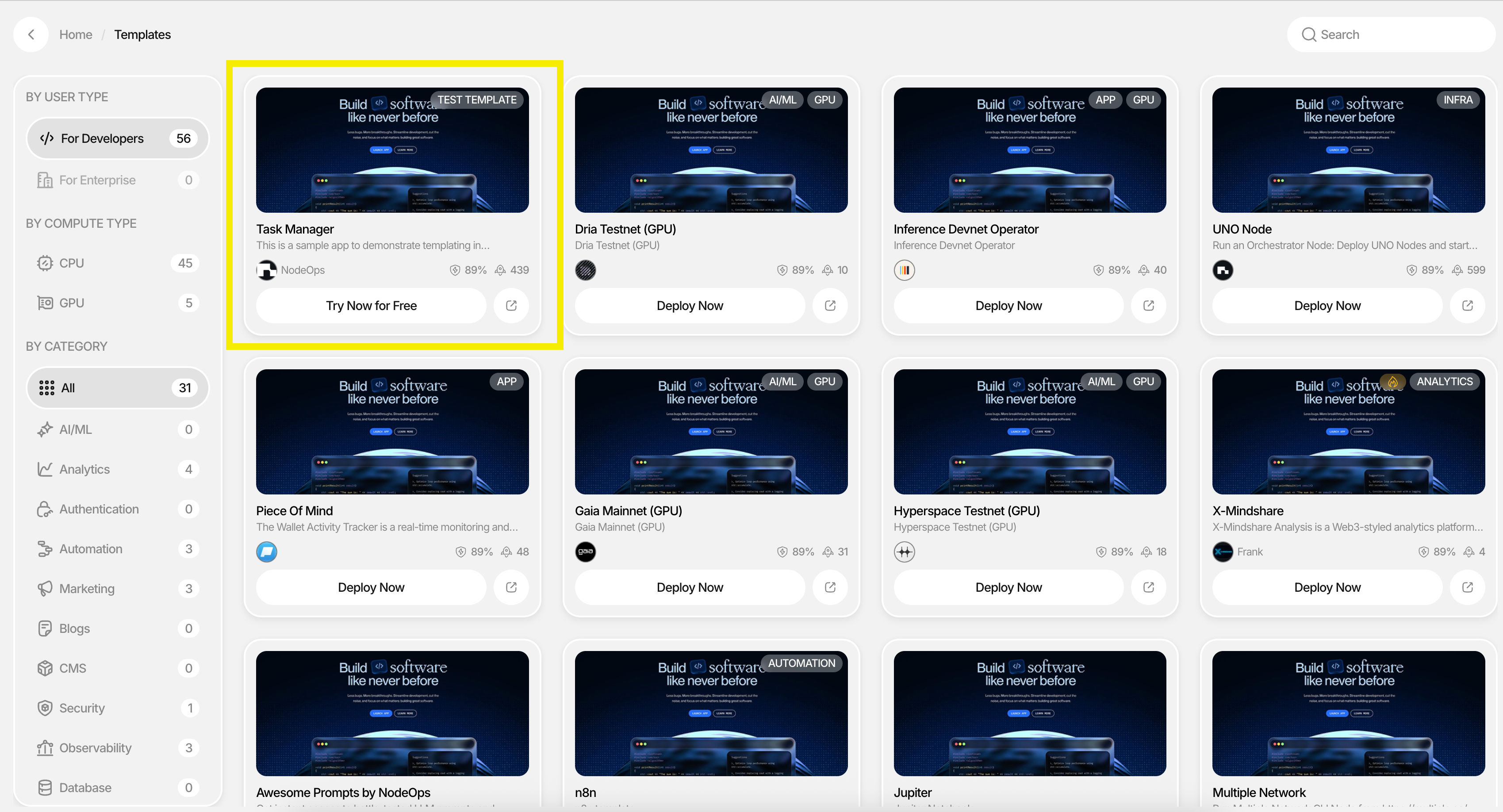
4. Deploying via Templates
Templates provide a pre-configured starting point for common application types.
Steps:
- Select Template
- Choose a template (e.g., web app, API service)
- Customize project details
- Click Deploy
Templates help you get started quickly with recommended defaults.
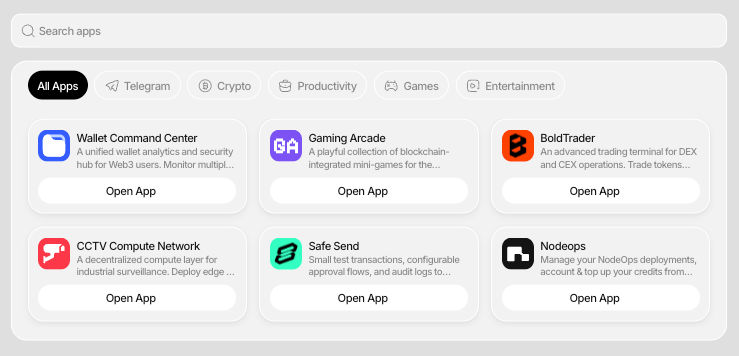
App Folder (Multi-Project Applications)
CreateOS Deploy supports an App Folder model that allows you to group multiple related projects under a single logical application. This is designed for real-world systems that consist of multiple services rather than a single deployable unit.
Managing Your Deployment
After deployment, CreateOS provides a centralized dashboard that allows you to monitor, operate, and iterate on your application throughout its lifecycle.
Available Capabilities:
- Build & application logs
- Application analytics
- Alerts
- Environment management
- Compute scaling
- Security scanning
- Custom domain configuration
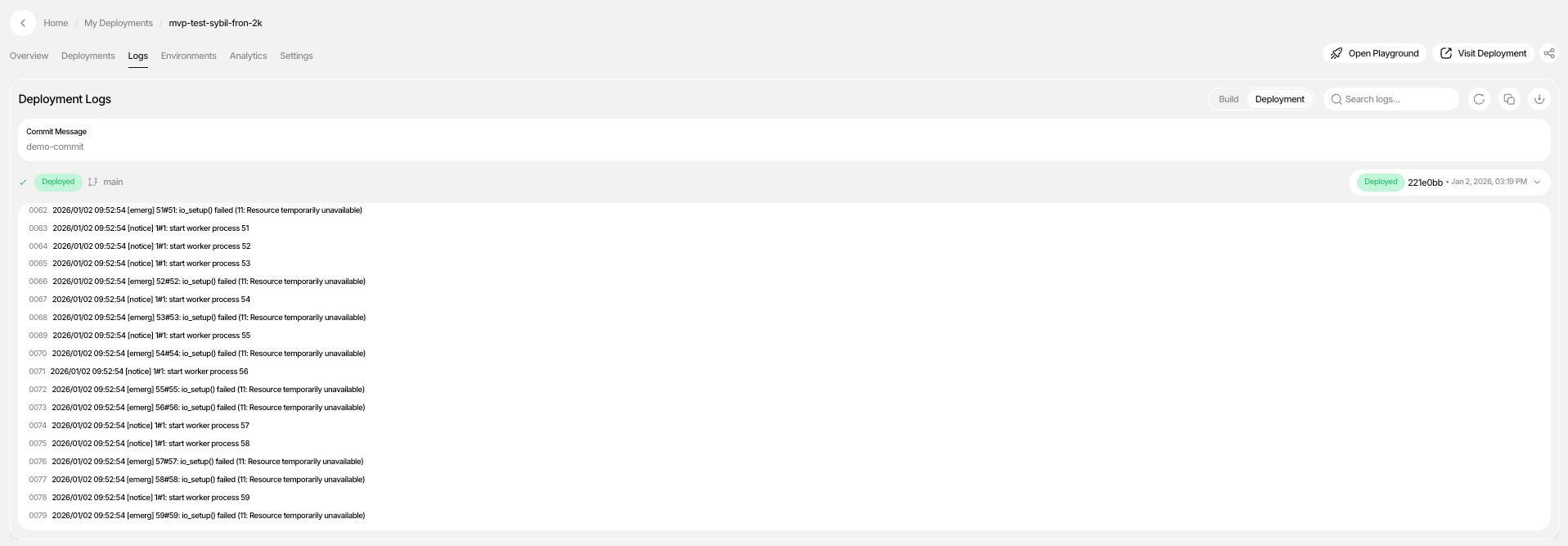
Build & Application Logs
Build & application logs provide full visibility into the deployment lifecycle and are essential for debugging and verification.
You can view:
- Dependency installation
- Build steps
- Compilation output
- Deployment status
- Errors and warnings
Logs update in real time, making issue resolution faster and more transparent.
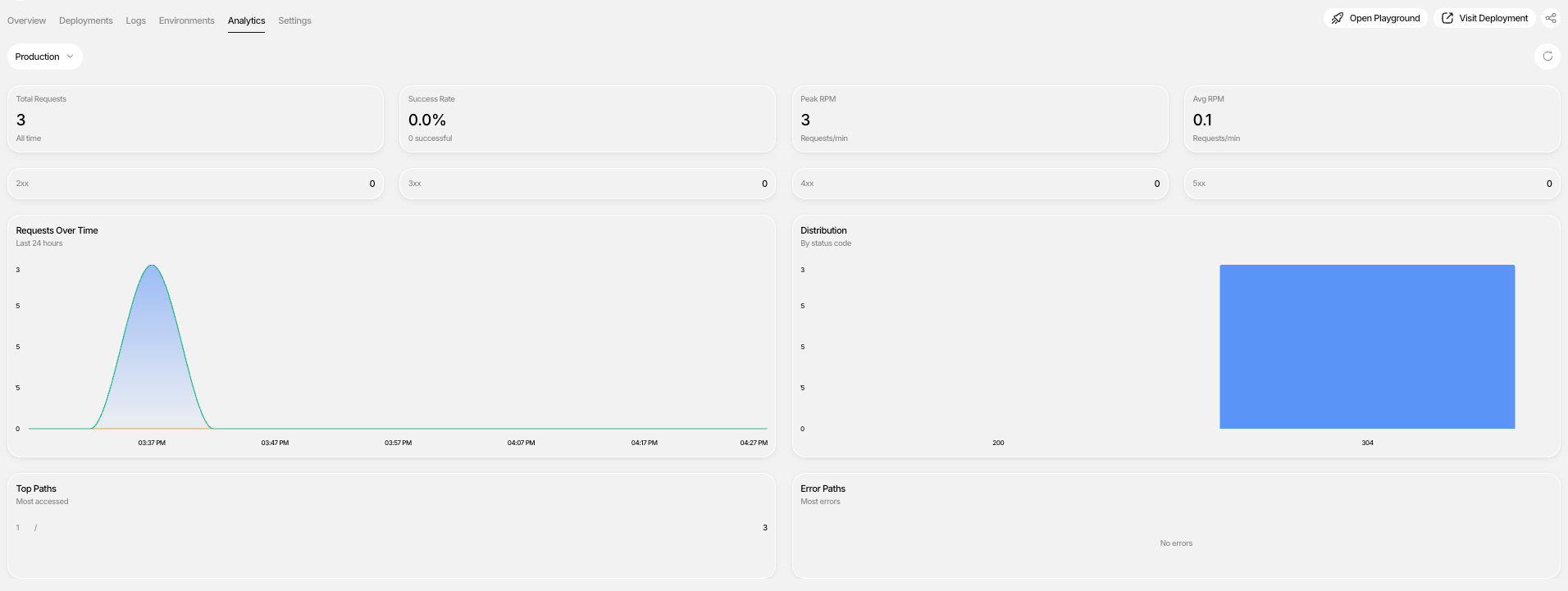
Analytics
Analytics help you understand how your application is performing in production.
You can track:
- Request volume and traffic patterns
- Response times
- Error rates
- CPU, memory, and bandwidth usage
- Geographic distribution of traffic
These insights enable informed scaling and optimization decisions.
Alerts
CreateOS Deploy includes built-in alerts to help you stay informed about the health and stability of your applications.
Alerts notify you when important events occur, such as:
- Deployment failures
- Application errors
- Resource usage crossing defined thresholds
- Availability or health check issues
By surfacing issues in real time, alerts allow teams to respond quickly, reduce downtime, and maintain reliable production systems without constant manual monitoring.
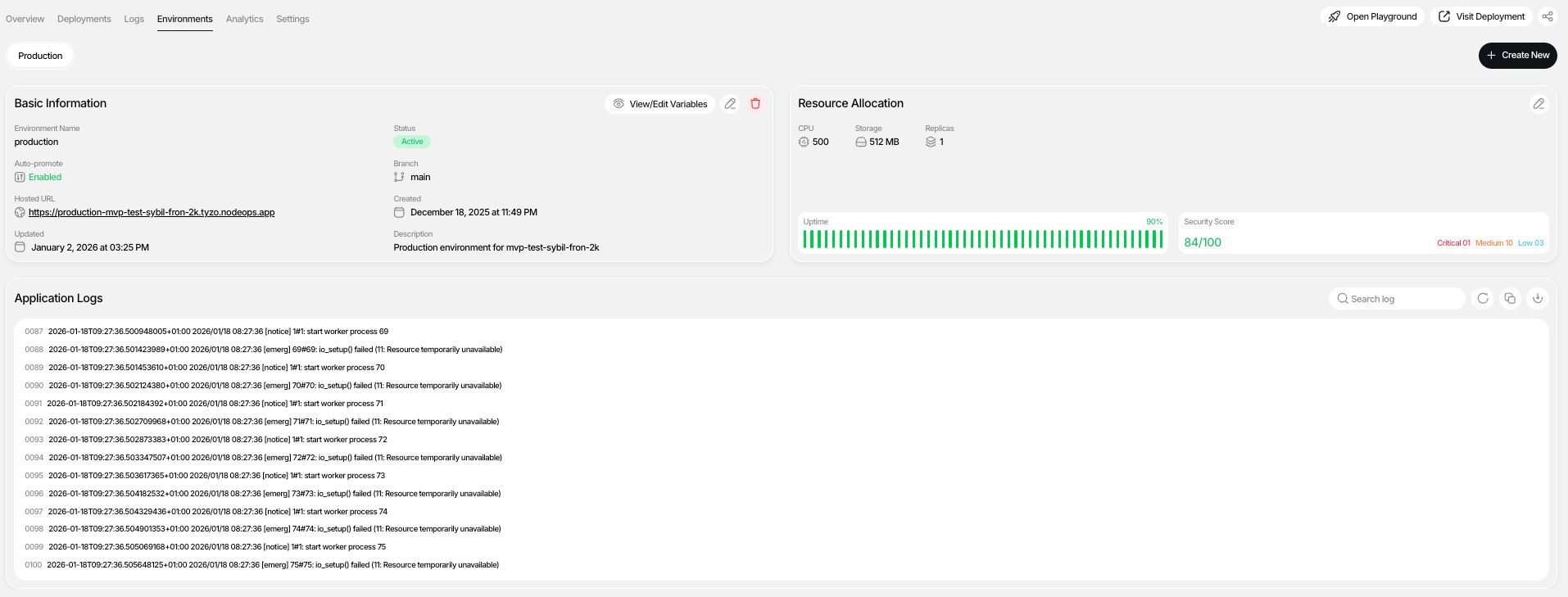
Environments & Deployment Promotion
CreateOS Deploy supports environment-based workflows for managing live versions of your application.
You can:
- Create environments such as staging and production (production is the default environment created at setup)
- Promote deployments between environments
- Enable auto-promotion to always keep environments up to date
What is Deployment Promotion?
Promote deployments between environments allows you to move a specific deployment from one environment (such as staging) to another (such as production) without rebuilding or redeploying the application.
When you promote a deployment:
- The exact same build artifact is reused
- Code, dependencies, and configuration remain unchanged
- Only the target environment mapping is updated
This ensures consistency between environments and eliminates issues caused by rebuilding the same code multiple times.
Compute Configuration & Scaling
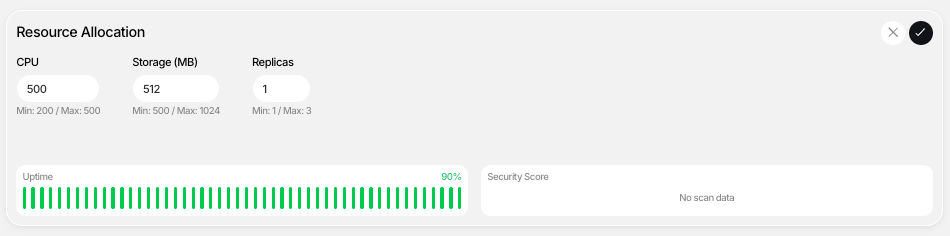
CreateOS Deploy makes compute resources transparent and configurable.
You can:
- Scale CPU and memory vertically
- Adjust replica counts horizontally
- View active compute configurations per deployment
Changes take effect immediately without rebuilding pipelines.
Built-In Security Scanning
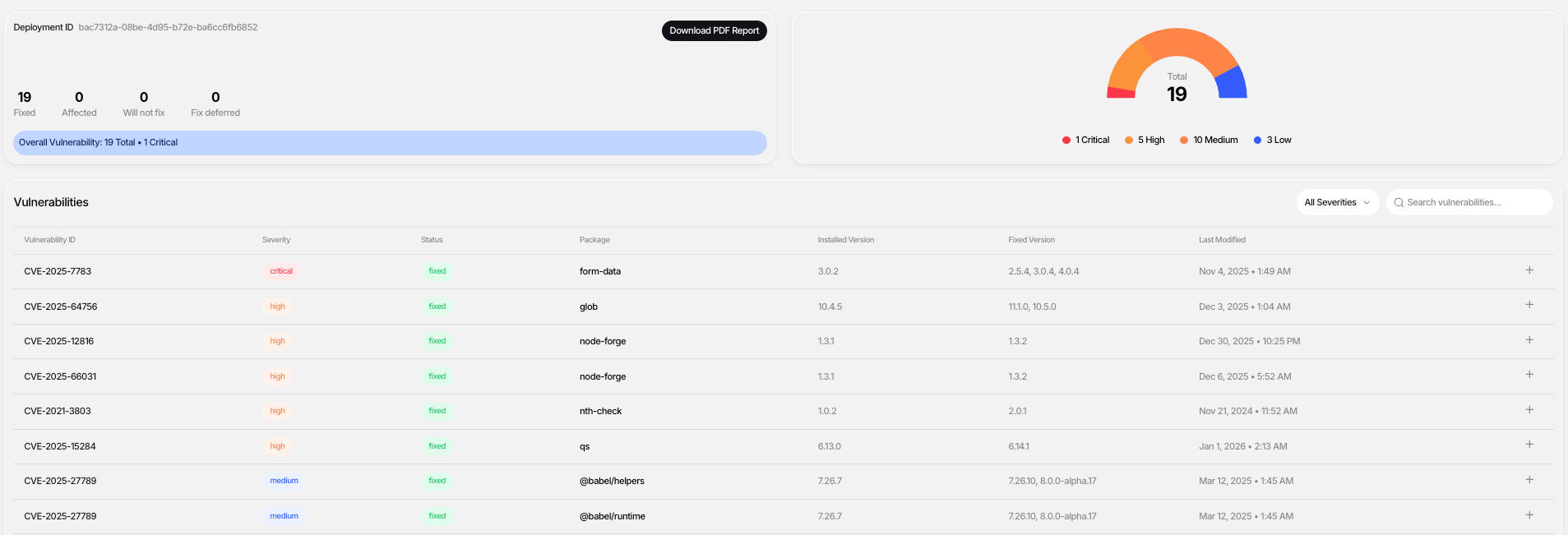
Every deployment includes an automatic security scan to surface vulnerabilities early.
You can:
- View a security score
- Inspect vulnerability details
- Fix issues and re-scan
- Download a detailed PDF security report
Security is integrated directly into the deployment workflow.
Custom Domains
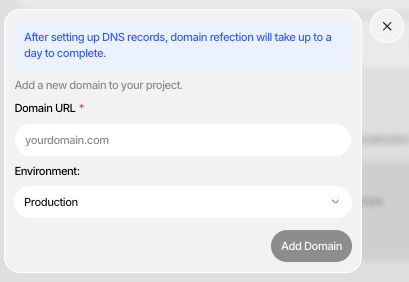
Each project is automatically assigned a CreateOS subdomain.
You can also configure a custom domain by:
- Navigating to project settings
- Adding your domain name
- Configuring DNS records
- Waiting for DNS propagation
- Activating the domain
GitHub Integration & Code Ownership
CreateOS Deploy maintains GitHub as the source of truth.
You can:
- Push projects to GitHub in a few clicks
- Download files and manage repositories manually
- Trigger redeployments automatically on every commit

API Keys & External Integrations
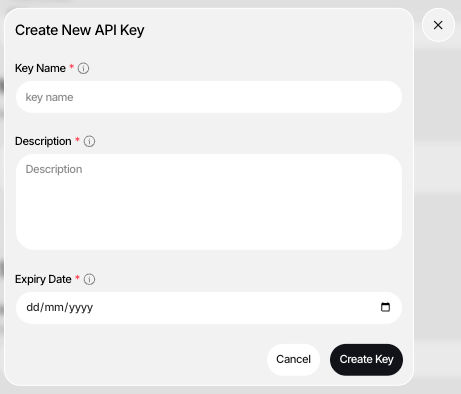
CreateOS Deploy supports API keys for secure integrations. You can configure your API keys in your Profile section.
You can:
- Generate API keys from your profile
- Integrate with external tools
- Automate workflows and deployments
AI Playground
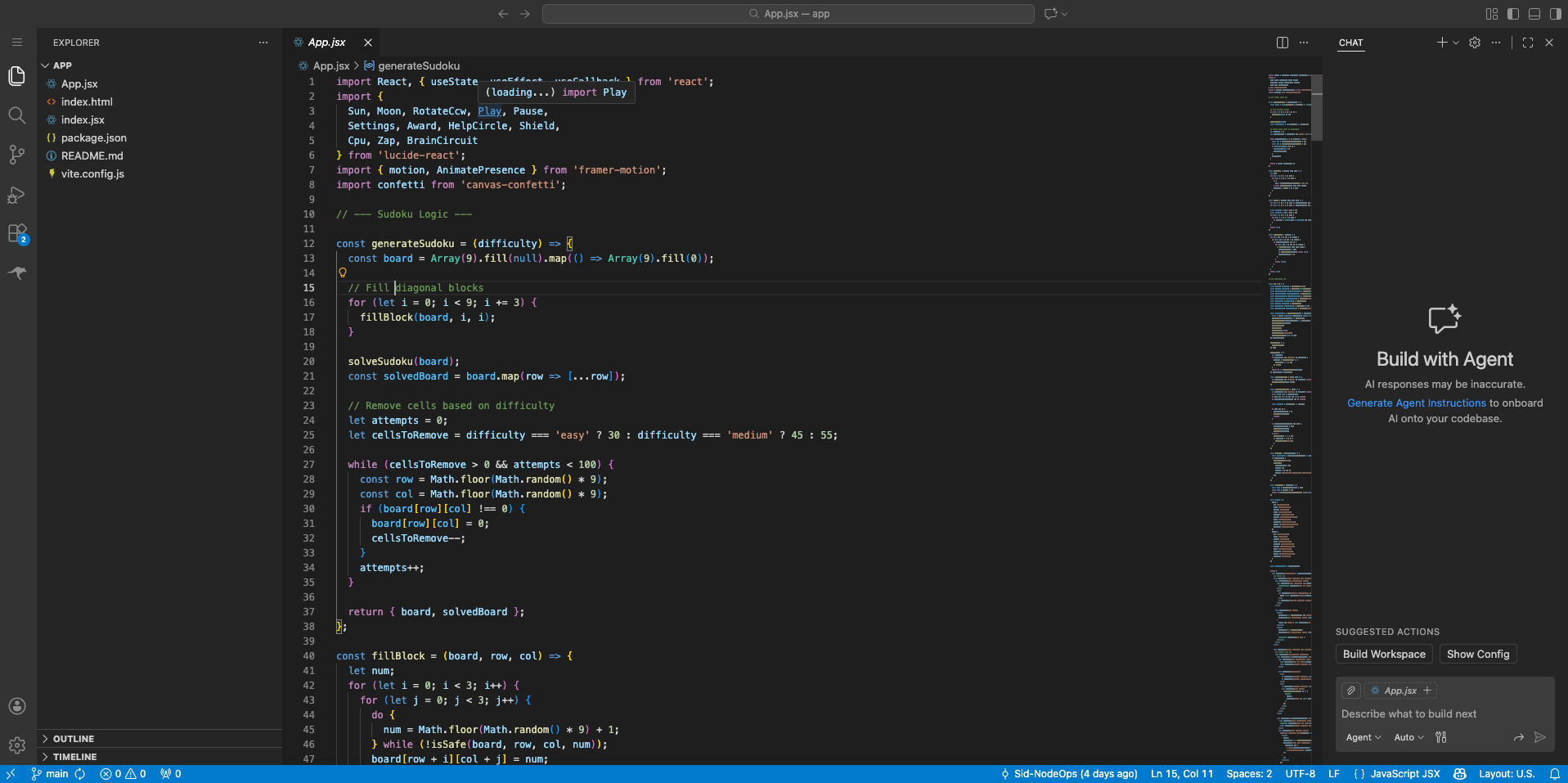
The AI Playground is a browser-based, AI-assisted coding environment connected directly to your GitHub repository.
Key Capabilities:
- No local cloning required
- Inline code edits
- AI agent assistance
- Automatic deployments on commit
Prerequisite: GitHub Actions must be enabled.
Multiple Projects & Session Management
CreateOS Deploy supports managing multiple projects simultaneously with clear separation and searchability.
Deleting Projects
Projects can be deleted from the dashboard when no longer needed.
⚠️ Important: Deleted projects cannot be recovered.