
Create an App from Scratch
This tutorial walks through creating and deploying an app on CreateOS using the prompt-based interface. You'll describe what you want to build, iterate through prompts, and finish with a live application at a unique, persistent URL—ready to share immediately.
Steps
Step 1: Access the Create Interface
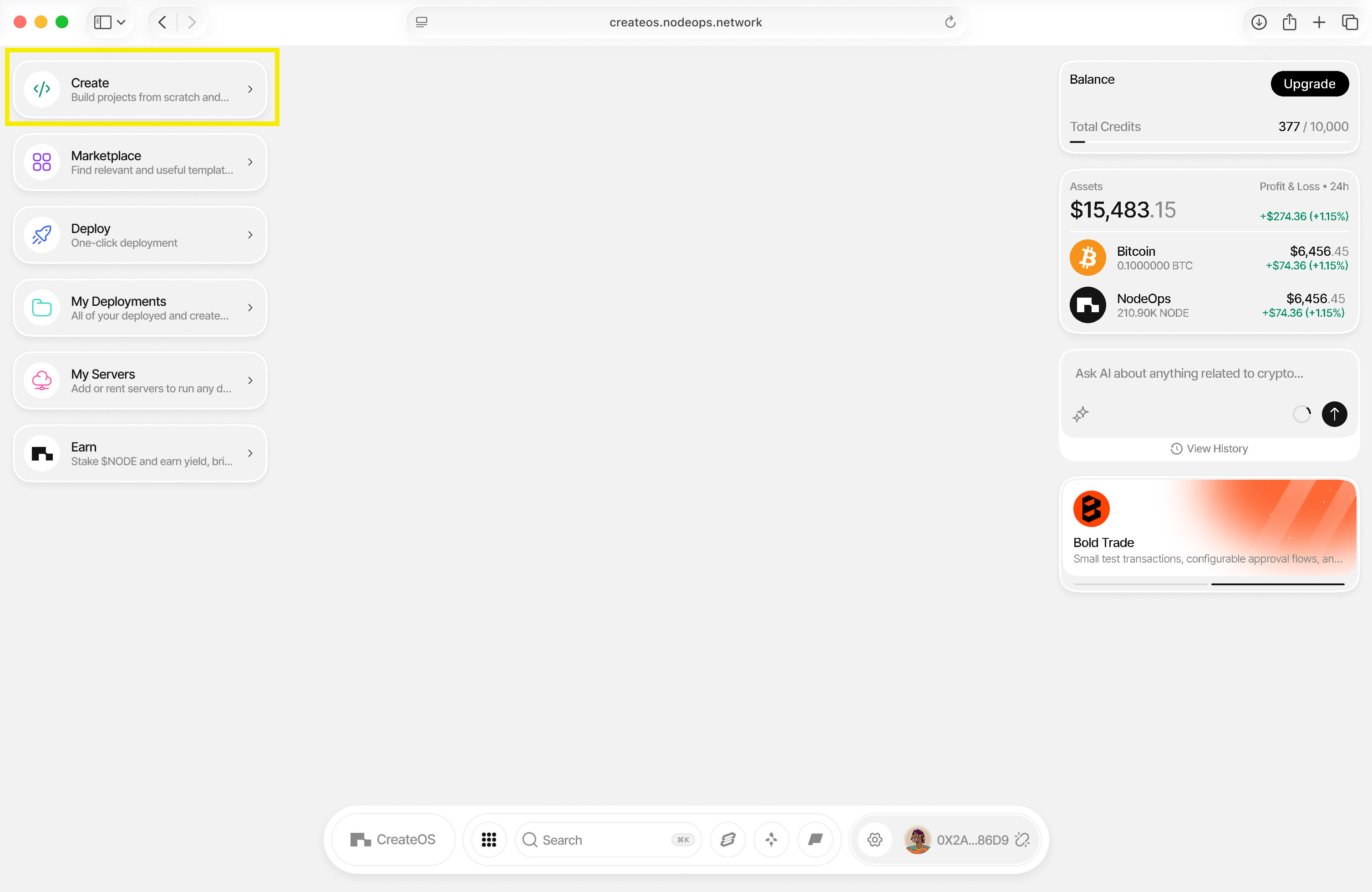
- Go to CreateOS Platform and log in
- Click "Create" from the menu on the left
Step 2: Describe Your App
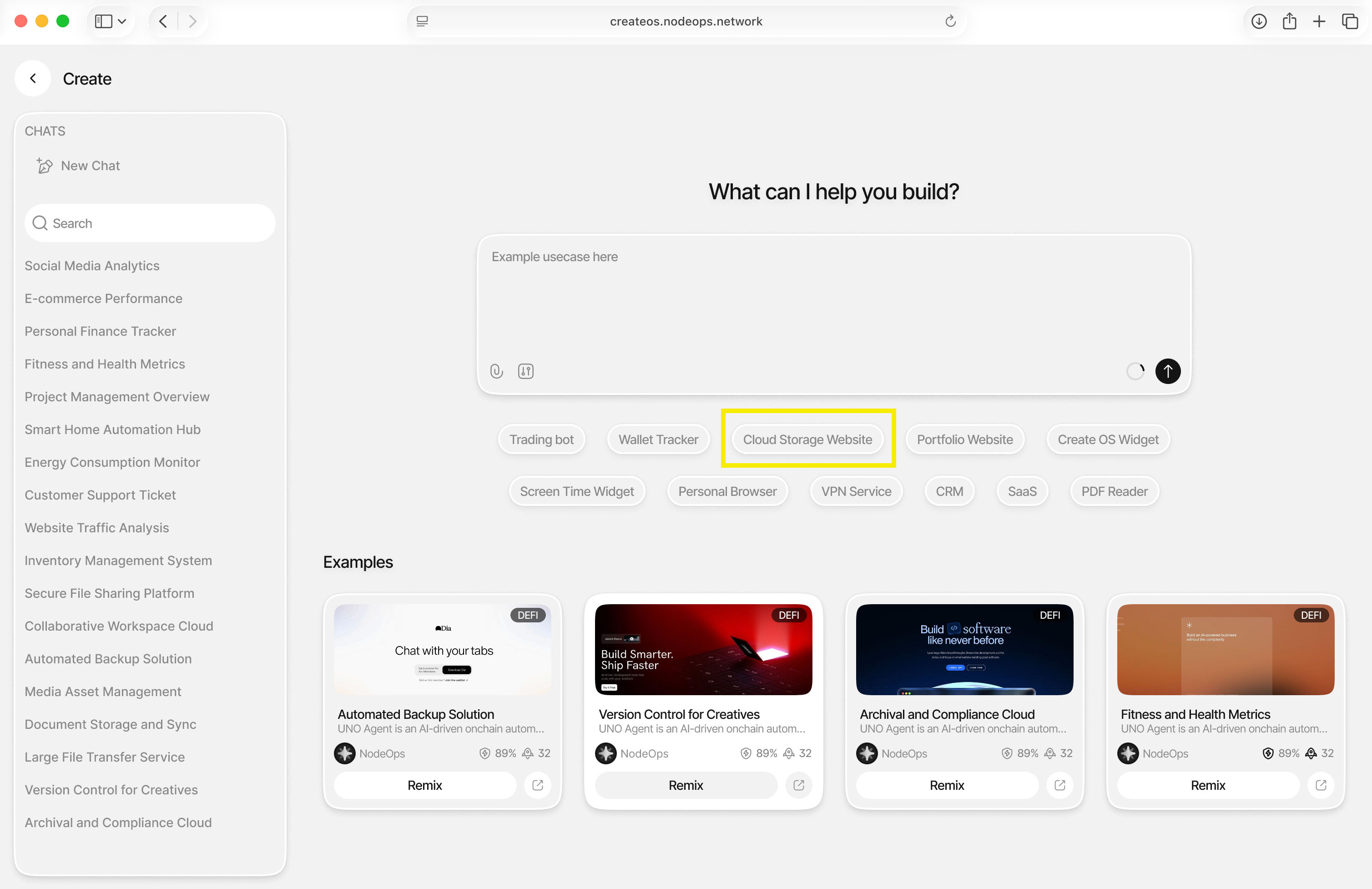
- You'll be brought to the prompt interface where you can describe what you want to build
- Need inspiration? Try one of the suggested prompts
- For this tutorial, click on "Cloud Storage Solution" (or enter your own idea)
Step 3: Review and Approve
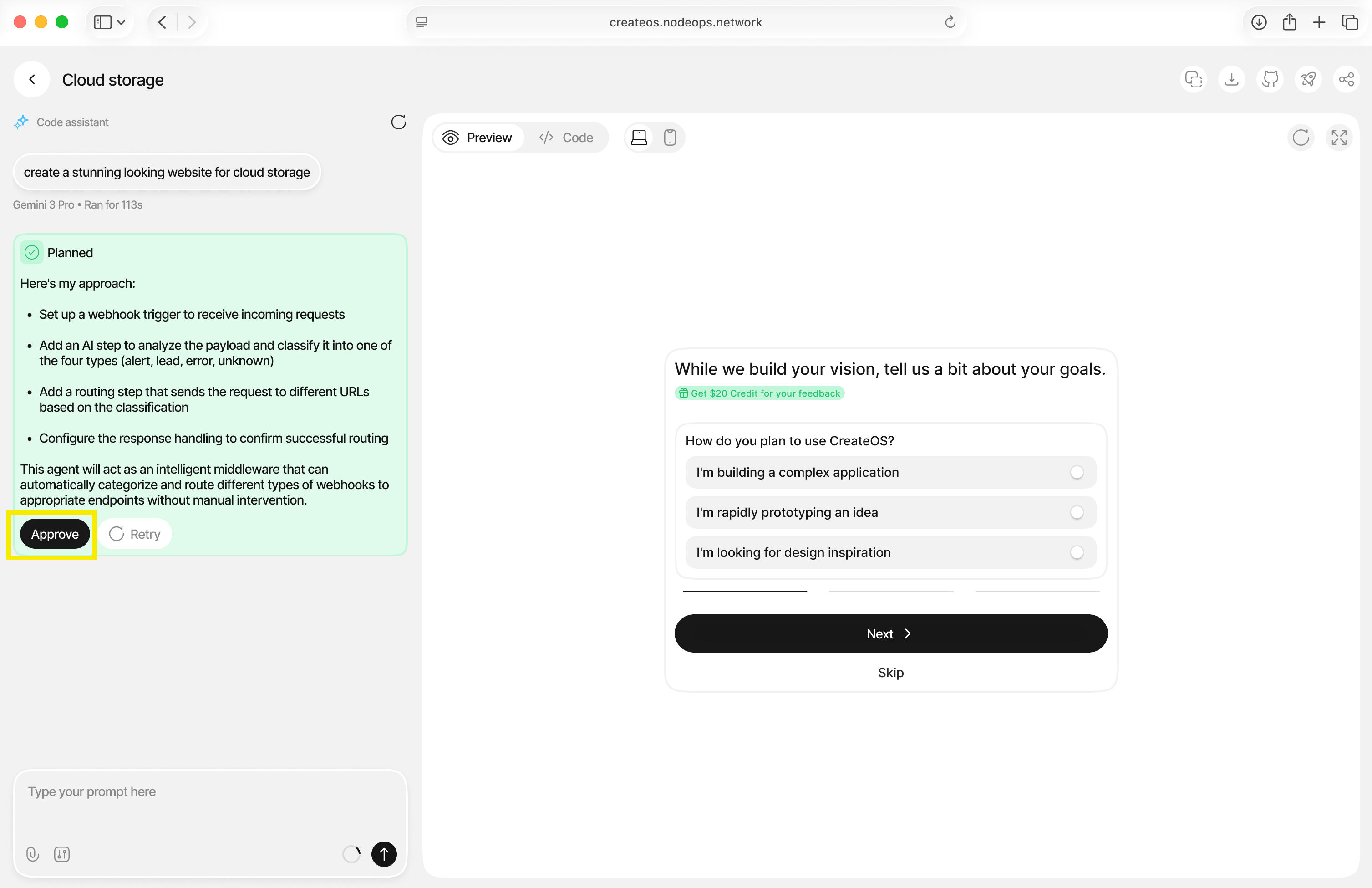
- CreateOS will take a few seconds to generate your application
- You may receive responses from CreateOS confirming its plan
- Click "Approve" to continue with the generation
Step 4: Preview Your App
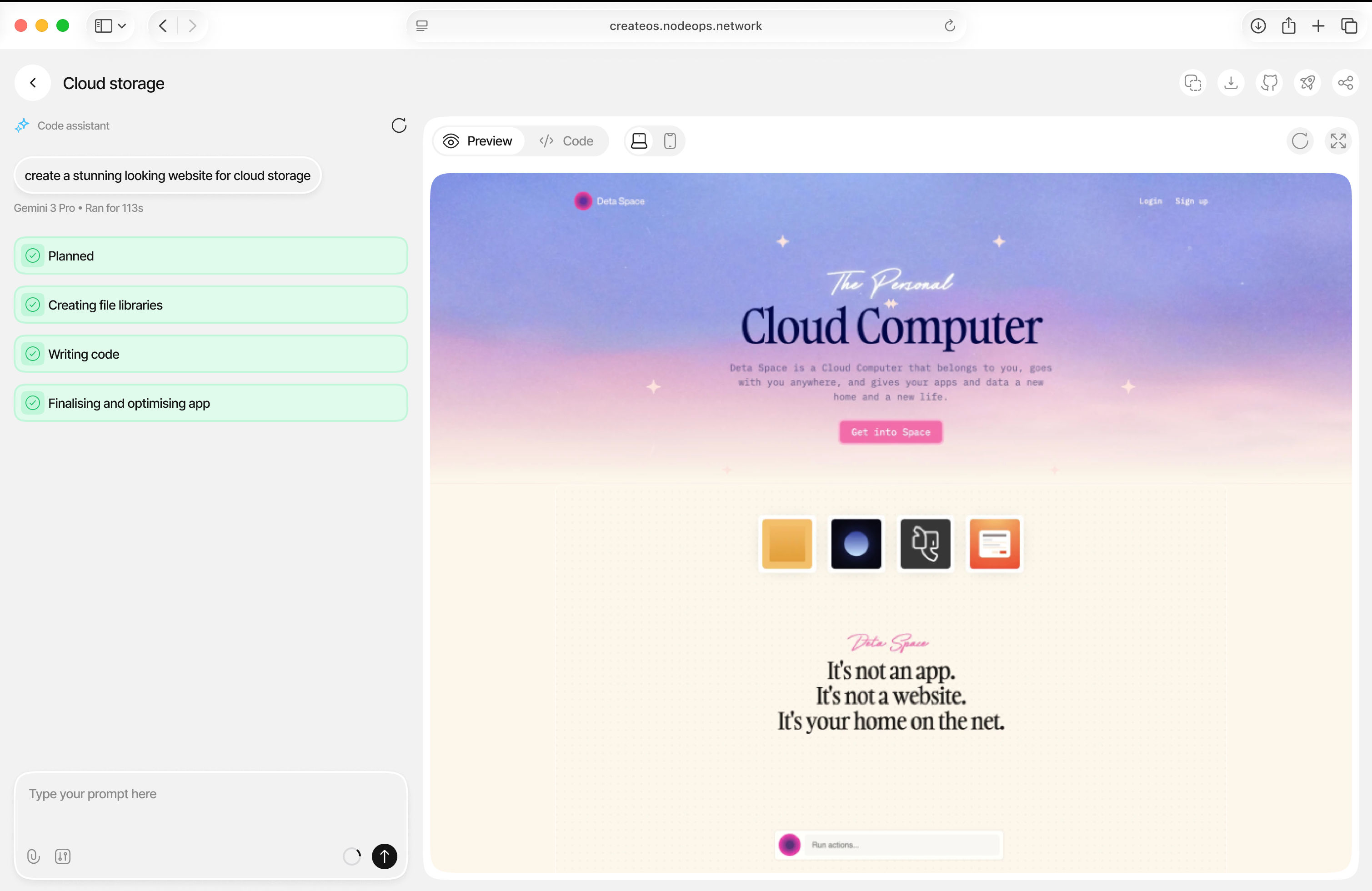
- CreateOS will generate a preview of your application
- Your app will be automatically deployed with a unique and shareable link
- From here, you can continue to modify the build with additional prompts
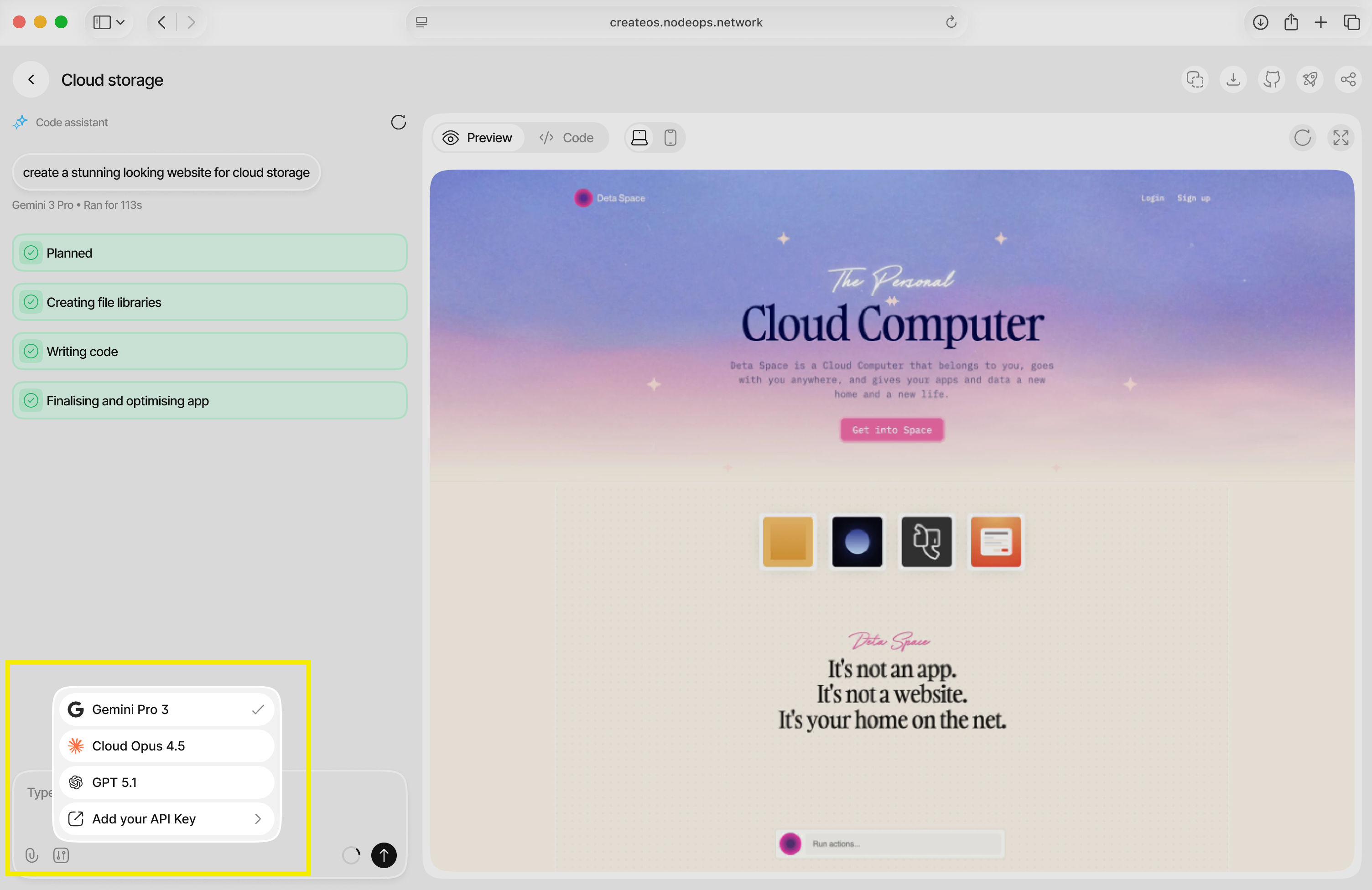
Switch Between AI Models
💡 Tip: CreateOS natively comes with Gemini Pro 3, Claude Opus 4.5, and GPT 5.1. You can cycle between models or bring your own by adding your API key.
What's Next
You've just created an application on CreateOS!
Now you have a live application with a persistent, shareable URL—no repository setup, no deployment pipelines, and no context switching.
This flow is built for speed, helping you move from idea to production in minutes so you can test, share, and iterate immediately.
Next, head to the dashboard to manage, monitor, and evolve your application as it grows.