
Widget Dashboard
The CreateOS Widget Dashboard is a customizable sidebar on the right-hand side of your interface that keeps essential tools and information at your fingertips. Personalize your workspace by adding, removing, and arranging widgets to match your workflow.
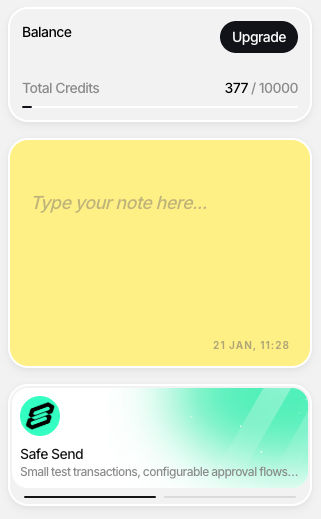
Available Widgets
Notes Widget
Capture ideas, reminders, and documentation directly within your workspace.
Features:
- Quick note-taking with markdown support
- Persistent storage across sessions
- Ideal for TODO lists, API endpoints, and code snippets
Share Price & Crypto Feeder
Monitor real-time stock market and cryptocurrency prices while you work.
Features:
- Live price updates for stocks and cryptocurrencies
- Track multiple assets simultaneously
- Support for major exchanges and trading pairs
- Price change indicators and percentage movements
Credits Usage Widget
Monitor your CreateOS credit balance and consumption in real-time.
Features:
- Current credit balance and usage history
- Transaction tracking and spending patterns
- Budget monitoring for deployments and listings
- Low credit alerts
Top Apps Section
Quick access to trending and popular applications from the CreateOS App Store.
Features:
- Curated list of top-performing applications
- Real-time trending updates
- Direct links to application pages
- Discover inspiration and market opportunities
Games Widget
Take quick mental breaks with integrated casual games.
Features:
- Browser-based games with instant play
- No downloads or installations required
- Variety of game types for quick relaxation
- Play directly within your workspace
Music Player Widget
Enhance your development experience with background music.
Features:
- Built-in music streaming
- Playlist creation and management
- Volume and playback controls
- Ambient soundscapes and focus-enhancing audio
Customization
Adding Widgets
- Click "Add Widget" or "+" icon in the Widget Dashboard
- Browse available widgets
- Select the widget to add it instantly
Removing Widgets
- Click the settings/menu icon on the widget
- Select "Remove" or "Delete"
- Confirm removal
Note: Removing a widget doesn't delete its data—re-add it later to restore content.
Arranging Widgets
- Drag and Drop: Click and hold the widget header, drag to reposition
- Resize: Adjust widget size to maximize or minimize screen space
- Collapse: Minimize widgets to headers for temporary space-saving
- Pin: Keep important widgets at the top of your dashboard
All configurations persist across sessions and devices.
Recommended Widget Setups
For Developers:
Notes + Music Player + Credits Usage
For Founders:
Credits Usage + Top Apps + Notes
For Market Research:
Top Apps + Share Price & Crypto + Notes
For Balanced Workflow:
Notes + Credits Usage + Games + Music Player