
Opencode Desktop Integration Guide
Overview
Integrate CreateOS with Opencode Desktop using the MCP (Model Context Protocol) to enable AI-powered deployment workflows directly from your development environment.
Prerequisites
- Active Opencode Desktop installation
- CreateOS account with API key access
- Project directory set up in Opencode
Setup Instructions
Step 1: Open Your Project
- Launch Opencode Desktop
- Select or open your project directory
Step 2: Create Configuration File
- In your project root directory, create a new file named
opencode.json - The file path should be:
<project-directory>/opencode.json
Step 3: Configure Connection Settings
Paste the following configuration into your opencode.json file:
JSON
Getting Your API Key:
- Log in to CreateOS
- Navigate to Profile Settings
- Copy your API key from the API Key section
Watch Tutorial →
Security Note: Keep your API key confidential and never share it publicly.
Replace "CREATEOS_API_KEY" with your actual CreateOS API key in the configuration.
Step 4: Apply Configuration
- Save the
opencode.jsonfile - Restart Opencode Desktop to apply the configuration changes

Step 5: Verify Connection
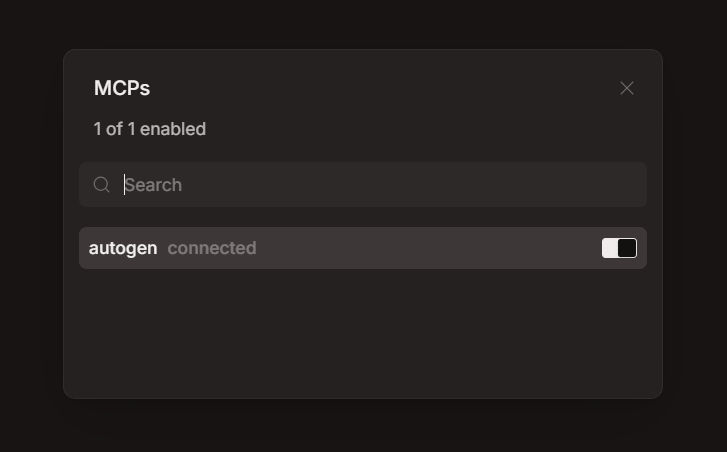
- After restarting, you should see the MCP connection indicator in Opencode
- Click on the MCP connection indicator
- Verify that "createos" is shown as enabled
Troubleshooting
If the server doesn't appear as connected, confirm:
opencode.jsonfile is in the correct project root directory- JSON syntax is valid (no trailing commas or formatting errors)
- API key is active and has proper permissions
- Opencode Desktop was fully restarted
Next Steps
Once connected, you can:
- Use AI prompts to deploy services directly from Opencode
- Access CreateOS infrastructure through the MCP interface
- Manage deployments without leaving your development environment
Resources
- MCP Server (GitHub): github.com/NodeOps-app/createos-mcp
- Skills (GitHub): github.com/NodeOps-app/skills
- MCP Operations: Full list of 75+ tools